ChromeOS 149 is rolling out now with useful accessibility and diagnostics improvements plus a major security hardening; most eligible Chromebooks began receiving the stable update in June 2026. If you use a Chromebook, expect a staged rollout—check Settings > About ChromeOS to see availability and install status.
This post explains what ChromeOS 149 is, the key features, how to update, what to do before updating, and common troubleshooting steps in simple, human-friendly language.
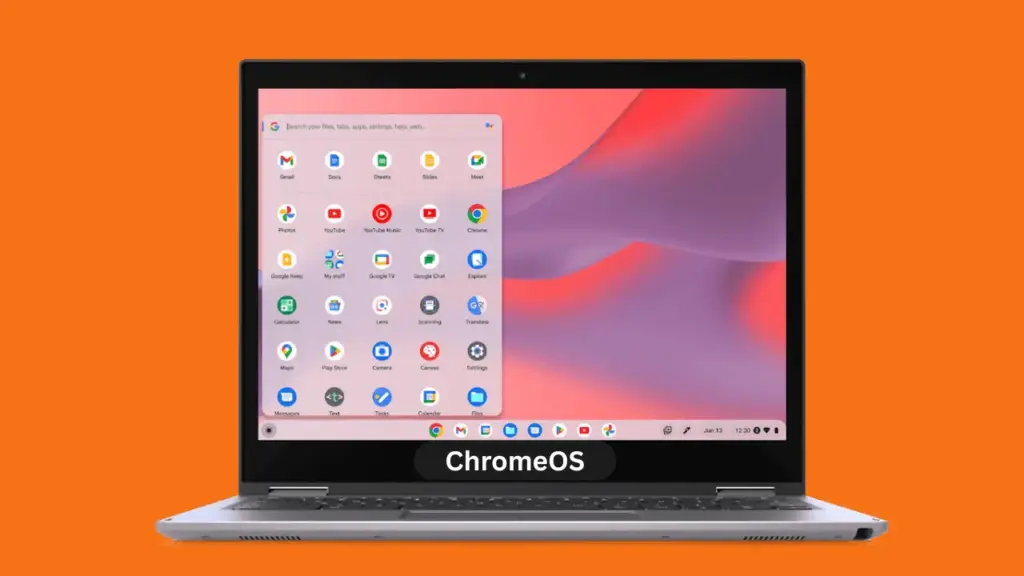
Table of Contents
What is ChromeOS 149?
ChromeOS 149 is the June 2026 stable release for ChromeOS that focuses on usability, diagnostics, accessibility sync, and a large security patch. It is not a huge visual overhaul but adds practical tools for everyday Chromebook users and administrators.
Key features in ChromeOS 149
- Connectivity Troubleshooting in Diagnostics — A new built-in tool runs automated ping and connection checks against core Google services to pinpoint where network problems occur. Open Diagnostics with Ctrl + Search + Esc.
- Inverted Color Cursor option — The mouse pointer can dynamically invert to remain visible over light or dark backgrounds, improving visibility on multi-monitor or high-resolution setups. Note: very old GPUs may not support this.
- Accessibility settings sync — Your accessibility preferences (contrast, cursor size, etc.) can now follow you between ChromeOS devices, making transitions smoother.
- Security hardening — ChromeOS 149 includes one of the largest security patches in recent ChromeOS history; installing it helps protect against known vulnerabilities.
- Enterprise and admin improvements — New remote locate options for managed devices and enhanced reauthentication for admins.
How to update to ChromeOS 149
- Open Settings → About ChromeOS.
- Click Check for updates; if 149 is available, the device will download it.
- Restart when prompted to finish installation. If your Chromebook is managed by a school or company, admins may control timing.
Before you update: quick checklist
- Back up important files to Google Drive or an external drive.
- Plug in your Chromebook or ensure battery >50%.
- Note any device management policies if your device is managed by an organization.
- Check compatibility for features like inverted cursor if you have very old graphics hardware.
Troubleshooting and FAQs
Rollouts are staged. Wait a few days and retry Settings → About ChromeOS → Check for updates. Managed devices may be delayed.
Try restarting your router, reconnecting to Wi‑Fi, and running the Diagnostics tool again. If the issue persists, note the test results and contact support.
The inverted cursor may be limited on legacy GPUs; check device specs and ChromeOS release notes.
Additional resources
- Chrome Enterprise and Education release notes for full admin details.
- Chrome 149 developer release notes for web platform changes.
If this helped, leave a comment below with your Chromebook model and any issues you encounter, I’ll help troubleshoot.